If you are going to be doing a lot of work in a command prompt you then you should enjoy it. It should be easy to read in terms of size and colors. It should be practical and functional but still show off your own personal style.
Started From the Bottom
I was cleaning off my hard drive and accidentally screwed up my computer (it would just turn off form the grey loading-bar screen) so I wiped my whole OS and started fresh (good thing I use git and google drive). However, I had everything wiped, including my programs and command line color profiles. One reason why changing up your editor is so important is that when you boot up terminal for the fist time you start off with such a horrible (aesthetically) command prompt:
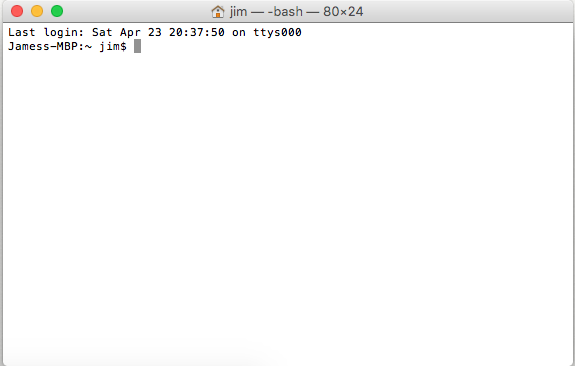
First off it's just blindingly bright. The text is super tiny and difficult to read some letters. I would seriously go crazy if I had to work in this shell all day, every day. Luckily, no one has to anymore... On this day I have to reinvent my .bash_profile and re-document the terminal font adjustments, but now future Jim's computers (and anyone with this link) can just copy the snippets below, but you can of course change it to some others settings you prefer.
Choose Your Path
At this point it's worth saying that terminal is not the only way to do shell scripting on a mac. There are plenty of other programs such as ITerm 2 that replace terminal, but the same principles apply. I personally like to just use the built-in application called Terminal.
Profiles
By default there are multiple different shells you can choose from, and they are each referred to as a profile. We can get to the shell editor by going to Terminal -> Preferences -> Profiles and choosing a profile to edit or clicking the plus button to create a new one. A profile is a collection of values for the default various shell colors and font settings.
Getting To The Font Editor
In Terminal - Terminal -> Preferences -> Profiles
In Iterm 2 - Iterm 2 -> Preferences -> Profiles
You can customize things like the font, font size, colors, etc, for a particular "profile", and they choose between your saved profiles when loading up a new shell.
In Iterm 2 - Iterm 2 -> Preferences -> Profiles
You can customize things like the font, font size, colors, etc, for a particular "profile", and they choose between your saved profiles when loading up a new shell.
Fixing the Fonts
The first and most important thing for me is bumping up the fonts size so I can actually read what the heck is going on. I like to make it pretty huge so that I really know what's happening and can still see it on high resolutions, normally 14 or 15pt. You can change font family at this point if you want to, I normally like Menlo Regular with character spacing 1.009. I also normally bump up the Line Spacing which really helps me to read the lines better than when they are crammed together one right on top of the next; I'm using 1.115 line spacing right now. I like the underline cursor as well.
Default Text & Background Colors
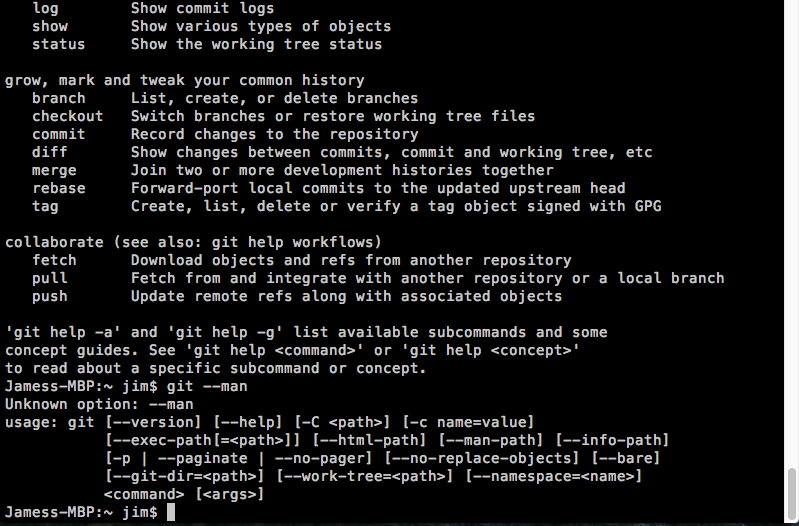
The important thing to remember with colors is that you want your command prompt to be easy to read and not straining on your eyes when you look at it. That means contrast the background color and the text color. It might seem really fun and cool to put opacity in your background, but it can quickly make your command prompt hard to read. I recommend keeping it over 60%. For the background color, I strongly recommend against white or neon colors because these are not nice to look at over long periods of time. An easy choice is black background with white text:
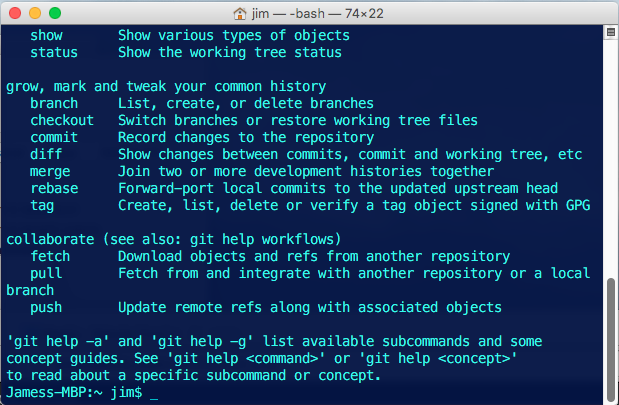
And here's a nice one that uses a teal text color over a dark blue 94% opaque background:
This one's always a crowd favorite; it's the hacker / matrix neon green text on back background, but ine the profile below I have the background at 80% opacity and 20% blur:
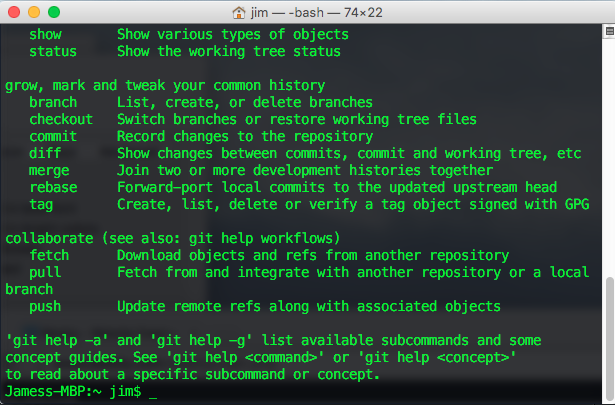
Honestly, I'm not really a fan of that one too much. The style I used to use a was basically just a dark font color over a dark yellow background with about 95% opacity. It would look something like this:
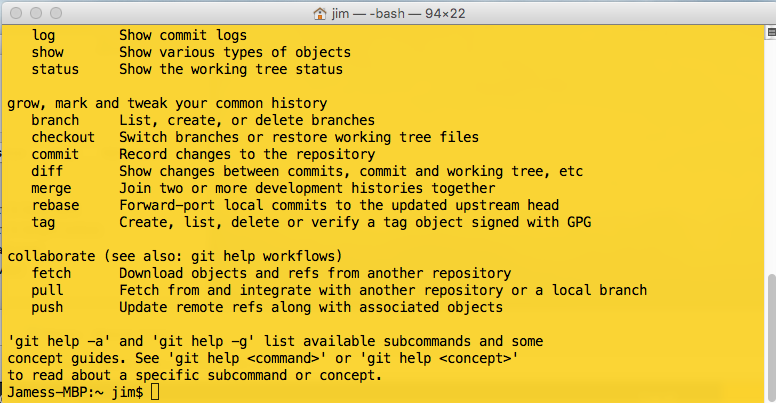
But right now I feel like being different so I'm going to go with a dark background- black at 95%. Then I'm going to pink a nice yellowish green font color called "honeydew" in the pencils sections of the color choices:
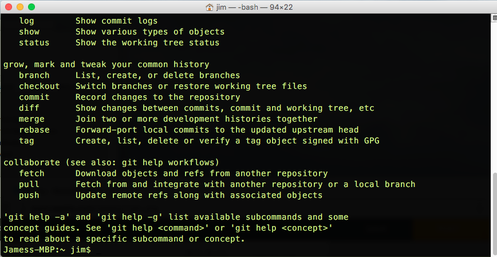
Even More Colors!!
If you aren't totally pooped from all the colors so far, I have a nice little tip that will spice up your command line text so that it's not the same, boring color all the time. All you need to do is add a few lines of text to your .bash_profile file.
To change it, open up terminal or your favorite BASH shell and type this:
To change it, open up terminal or your favorite BASH shell and type this:
vim ~/.bash_profile
You should then enter into the vim editor allowing you to see the contents of the .bash_profile file (note: t's ok if this file is empty). All you have to do is paste in this text:
export CLICOLOR=1
export LSCOLORS=GxFxCxDxBxegedabagaced
Yep, just like that!
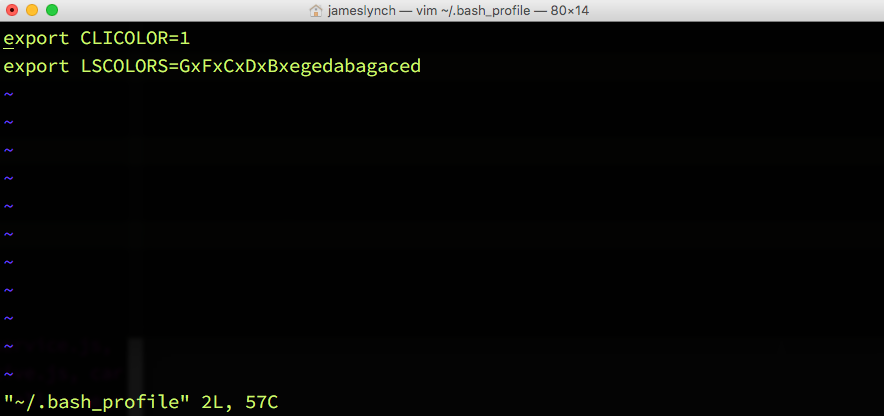
Note: You can also just add this in anywhere if you already have other code in this file
Then you can save an quit editing with vim (with ":wq" and enter).
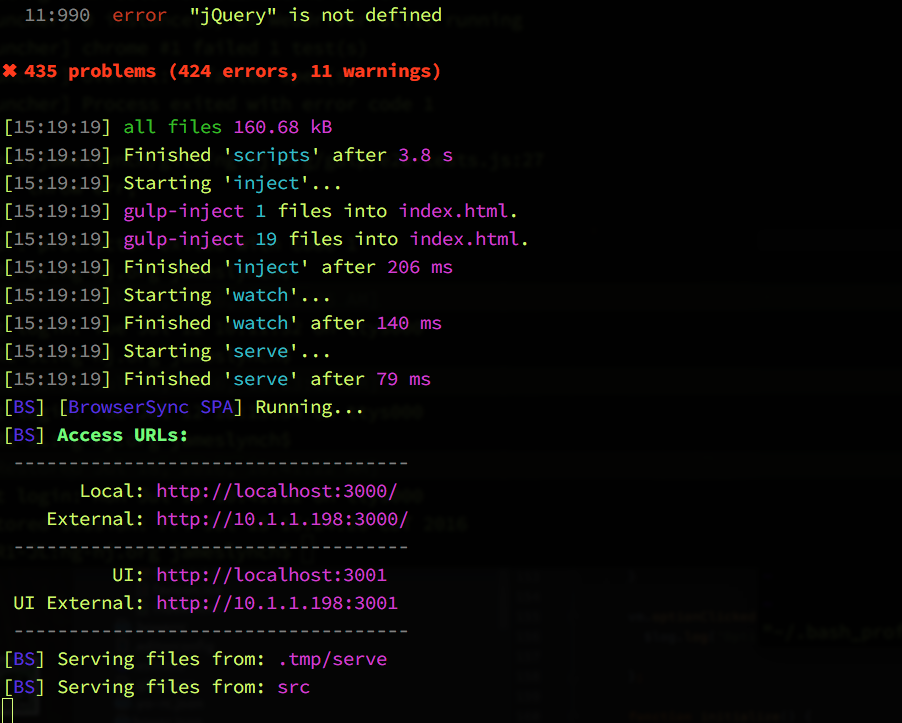
And now you'll have a super colorful command line! Booyah!
Update 9/1/19 - Git Colors!
Yes, even with all the color customization I had made at my current job my coworkers harassed me for still not having enough colors! UGH! Specifically, they wanted more colors for the output of my "git" commands. So, we must then go to the .gitconfig file. Yes, it must be in your root user directory, and it must be a hidden file with that exactly that name, no file extension... If you have this file already then this command will open it, and if you don't then it will create an empty file and allow you to edit it.
vim ~/.gitconfig
Ok, so once you are inside check if you have a block already that says [colors], and if not then add this chuck of configuration code to your file, replacing YOUR_GITHUB_USERNAME and YOUR_GITHUB_EMAIL with your Github username and email, respectively:
[user]
        email = YOUR_GITHUB_EMAIL
        name = YOUR_GITHUB_USERNAME
[color]
        branch = auto
        diff = auto
        status = auto
        interactive = auto
        ui = auto
[color "branch"]
        current = yellow reverse
        local = yellow
        remote = green
[color "diff"]
        meta = yellow bold
        frag = magenta bold
        old = red bold
        new = green bold
[color "status"]
        added = yellow
        changed = green
        untracked = cyan
Custom Command Prompt
By default a fresh command window will show some information about your current user and directory followed by the dollar sign ( $ ). You can customize this to be anything you want, really. Just open your bash_profile:
vim ~/.bash_profile
Here's an example of a configuration I like to use. It basically displays the current directory and the current git branch along with a custom icon:
The code below changes you command prompt that shows the current folder you are in, the current branch you are on in parentheses and in a different color (if you are in a folder tied to git), and a cool little icon that you can change to basically anything.
# Displays current directory followed by git branch in parentheses,
# then a knight chess piece horse icon.
export PS1="\W\[\033[33m\]\$(parse_git_branch)\[\033[00m\] ♘ "

Current Folder, Git Branch, and Cool Icon In Prompt
The PS1 above calls to a function name "parse_git_branch" which is shown below. Copy this code and paste it directly above or below the PS1 export.
parse_git_branch () {

    while read -r branch; do
        [[ $branch = \** ]] && current_branch=${branch#* }
    done < <(git branch 2>/dev/null)

    [[ $current_branch ]] && printf ' (%s)' "$current_branch"

}
Update 9/1/19 - Git Branch Completiong
Do you work on a team that likes to user super long git branch names? It gets pretty annoying typing out the whole thing all the time, doesn't it? Well, lucky for you "git tab completion" is a thing for mac terminal, and it's actually pretty easy to set up! As of today, all you need to do is:
1) Run this command to install git bash-completion through brew.
1) Run this command to install git bash-completion through brew.
brew install git bash-completion
and
2) Add git-bash-completion.sh to your ~/.bash_profile file.
2) Add git-bash-completion.sh to your ~/.bash_profile file.
source /usr/local/git/contrib/completion/git-completion.bash
Be sure to do git fetch often to ensure you have the latest branches. Then any time you need to type a branch name you should be able to tab through it the same as you can tab your way through directory names! This is a nice perk that cuts out some wasted time and energy of having to type out branch names all the time. ?
At the end of the day, you need to have a command line that you feel is comfortable. Especially in AngularJS (but really all Front-End development nowadays) the command line is a huge part of the process (Karma, Gulp, Babel...), and by embracing what it can do for you your efficiency can skyrocket. Take the time to set up your tools nicely so that they will work well work you, it will be worthwhile in the long run.
|
|


 RSS Feed