I personal like the control you have when using git from the command line, and a nice thing to be able to do is see the changes I've made (duh hehe). I really didn't know the proper name for this so I am calling it the "git commit lifecycle", but basically these are shell scripts you can run to see your changes before you add the changes, after you add them but before committing, and after committing. Enjoy!
View Your Current Files Changed
You can aways see what files you have changed since committing by running:
git status
View Changes Before The Files Were Added
You can see the changes you've made to all files by running:
git diff
This will display a list of all your changes which you can scroll through with the down arrow key.
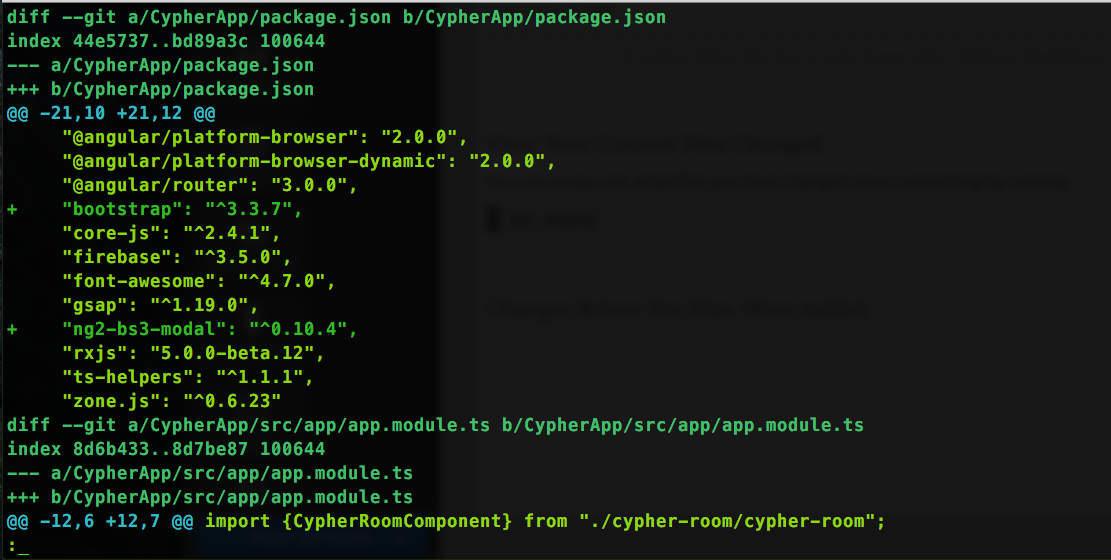
The "diff" keyword tips you off that that particular line is the beginning of a diff block (a snippet or snippets from a code file that tells you about changes is that file). Then it tells you was file it's talking about. The "+++" means that this version of the file has things added to it, and the "---" doesn't have them. Then (in the yellow color above) is the actual code from my file. the lines in green with a plus on the left are my changes! This tells you that the way in which this file changed was that these two lines were added. If code was removed then these will show in a similar fashion but with red color and minus signs to the left on the line.
View Changes After The Files Were Added But Before Committed
To view the changes in a similar form to "git diff" but this time showing changes that have been made to files that were added but not yet committed, you can run this:
git diff --cached
View Changes After Files Were Added But Before Committed
To view these same changes after you commit the files but before you push them you can run this command:
git diff HEAD^ HEAD
Anything Else?
This was a relatively short post that was meant to be, "just the facts, ma'am", Let me know if there's anything I'm missing or anything you think should be added here! :)


 RSS Feed